.webp)
.svg)
Computers are not just another household item to box up at the end of a move. A desktop tower can contain delicate internal components, a monitor can crack from pressure in the wrong spot, and one missing cable can slow down setup in your new home or office. The safest approach starts before packing materials come out: back up your data, document your setup, disconnect everything carefully, and protect each device from shock, static, moisture, and pressure.
At Reputation Movers, we help homeowners, renters, and businesses in Alexandria, Northern Virginia, and the greater DMV area plan moves where fragile, high-value items need extra care. If you have questions while preparing your computers or other electronics, reach out to us before moving day so you can plan the safest packing approach.
Back Up Your Computer and Document Your Setup Before Packing Anything
The first step in packing a computer is not wrapping the tower. It is protecting the information stored on it. Before any computer is disconnected, create at least one full backup of critical files to an external hard drive and, where possible, to a cloud backup.
This matters because the physical move can introduce risks that have nothing to do with careful ownership. A drive can fail, a box can be dropped, or a device can be misplaced. A current backup protects documents, photos, work files, and other irreplaceable data if hardware is damaged during transit.
Office moves often require extra planning. IT teams commonly schedule backups a day or two before movers arrive, so computers can be shut down and disconnected in an orderly way. For homes, the same principle applies on a smaller scale: do the data protection first, then move on to the physical packing.
A shutdown checklist prevents damage and missing accessories
Once the backup is complete and confirmed, shut the computer down through the operating system. For a desktop, turn off the power supply switch if the tower has one, then unplug the power cord from the wall and from the back of the tower. Remove discs, USB drives, dongles, and any small accessories from ports or drives before packing.
A soft cloth can be used to wipe exterior dust from the tower, monitor, and accessories. This keeps dust from getting trapped under packing material or moving into vents during the move. Do not rush this step, especially if the computer has been under a desk for a long time.
Documentation saves time at the new location. Take photos of the back of each desktop tower, monitor, docking station, and other connected equipment before disconnecting cables. Moving and IT guides recommend photos of the back of each device so cable placement can be recreated later.
For a single home computer, a few clear photos may be enough. For a home office or business, create a simple inventory with the device name, user, location, monitor count, and important peripherals. This helps keep matched sets together during packing, loading, unloading, and setup.
Use Original Computer Boxes When They Are Intact, and Upgrade When They Are Not
Original manufacturer boxes are often the best option for packing desktops, monitors, and printers when they are still in good condition. They are shaped for the device and usually include molded inserts that support the equipment in the right places. If you kept the original packaging, inspect it before relying on it.
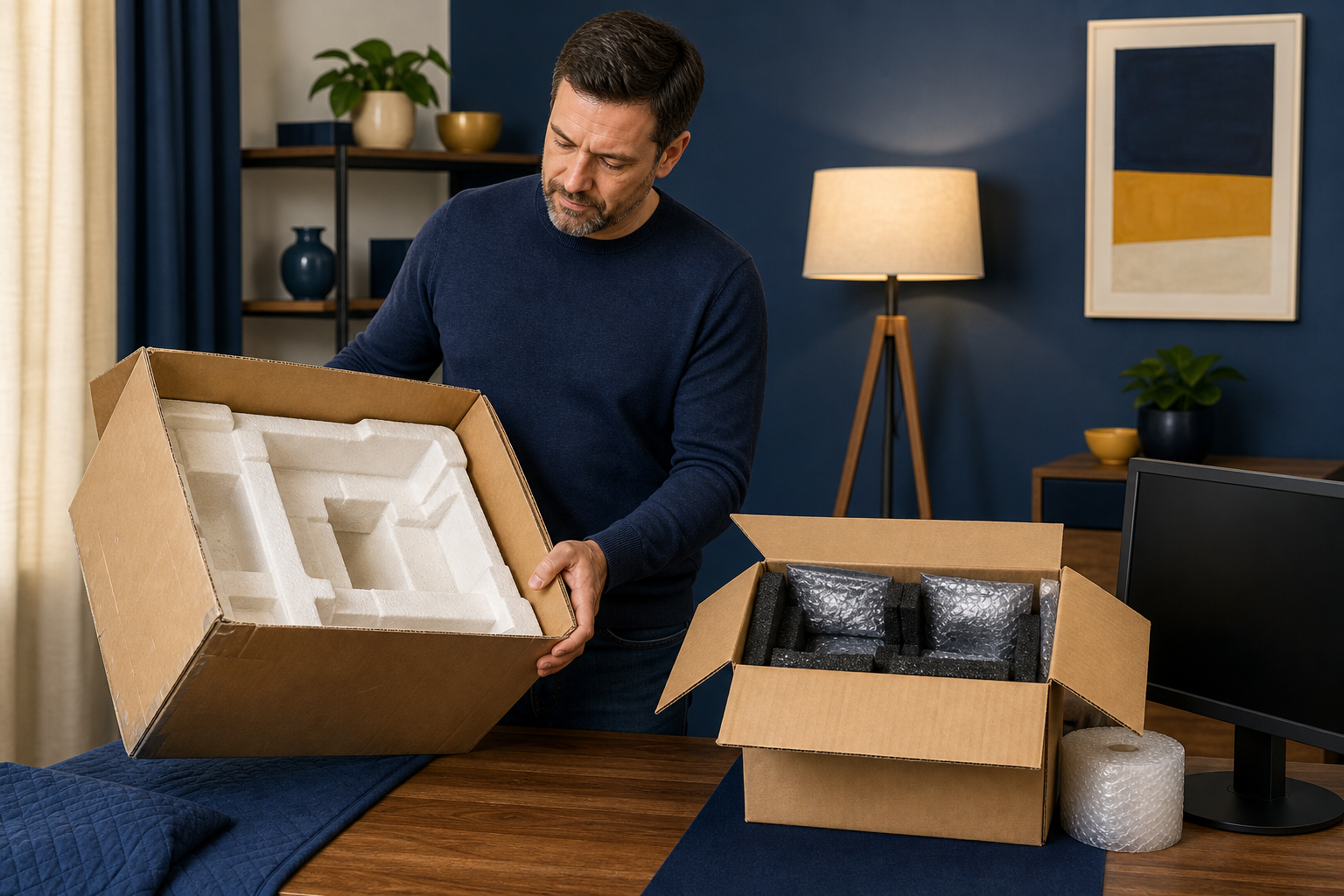
The box should be structurally sound, the inserts should still fit properly, and the bottom seams should hold firm. If the box is worn but usable, reinforce the seams with heavy-duty tape, especially along the bottom flaps. A weak box can defeat otherwise careful packing.
Original boxes are not always enough. If the foam is missing, deteriorated, or incomplete, a loose manufacturer box can allow the computer or monitor to shift. In that case, it is safer to use a strong double-walled moving box, anti-static cushioning, and padding that fits the actual dimensions of the equipment.
Custom packing is safer for high-value or long-distance computer moves
High-value gaming desktops, large monitors, servers, and multi-monitor workstations may justify custom packing or professional-grade materials. This is especially true for long-distance moves where boxes may be transferred, stacked, or stored before reaching the destination.
Professional packing can add value through custom foam, anti-static bags, double-boxing, clear labels, and documented handling instructions. For customers using Reputation Movers for packing and unpacking, this is the point where we can help plan how computers, monitors, and tech accessories should be grouped, labeled, and protected before they are loaded.
Distance and handling complexity should guide the decision. A short local move with careful personal handling may be suitable for original boxes or carefully prepared DIY packing. A long-distance move, a high-end desktop, or an office setup with multiple stations calls for stronger materials and clearer labeling.
Pack a Desktop Tower Upright With Internal Support and Anti-Static Cushioning
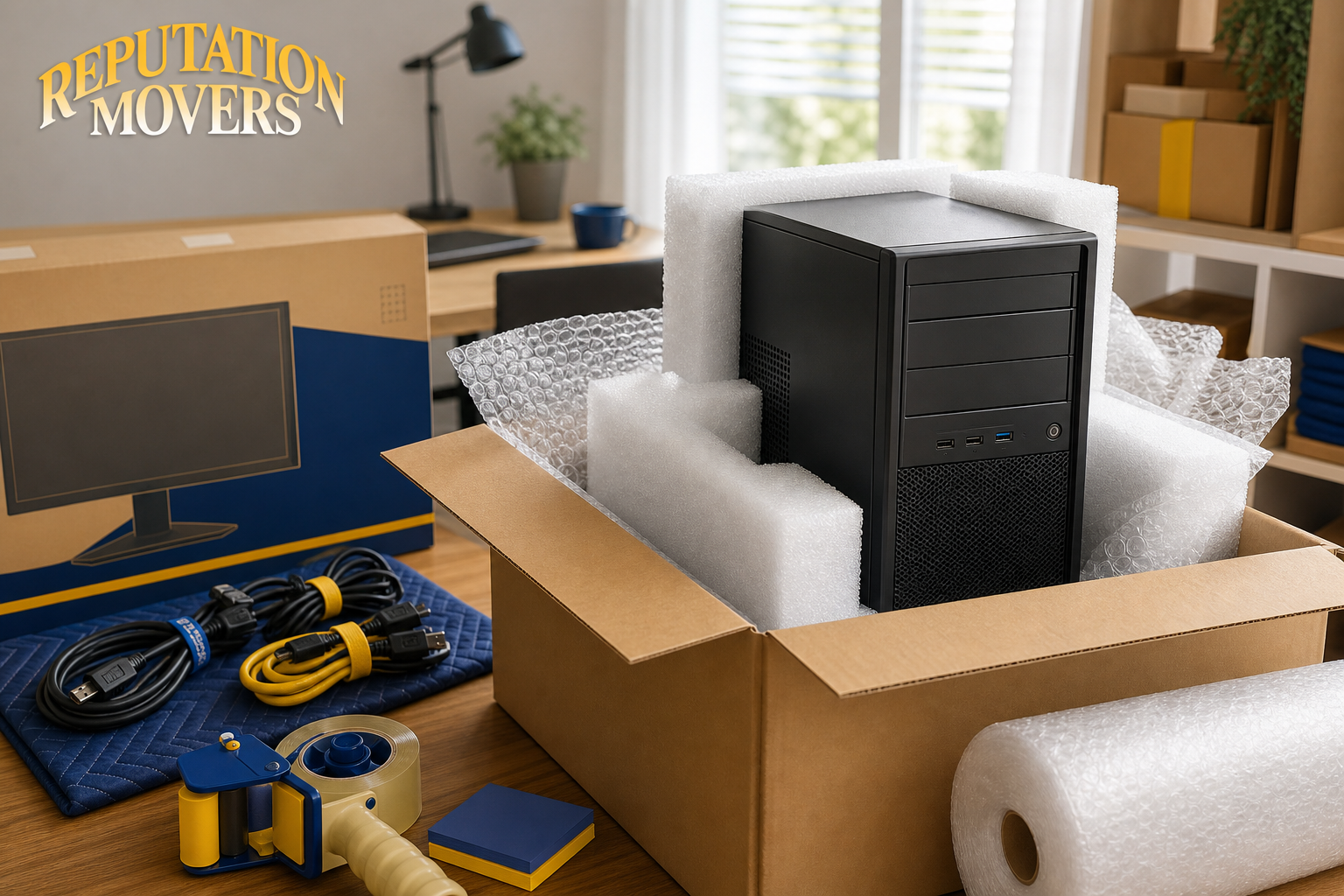
Desktop towers are vulnerable because shock and vibration can stress the motherboard, graphics card, hard drives, and cooling systems. The case may look sturdy from the outside, but heavy internal parts can shift or pull against the motherboard when a truck hits bumps.
Before packing the tower, consider whether any heavy internal parts should be removed. Gaming PCs and custom desktops may have large graphics cards, mechanical hard drives, heavy cooling hardware, or other components that are better packed separately. When parts are removed, place them in anti-static bags and padded boxes.
If components remain installed, empty spaces inside the case can be filled carefully with crumpled packing paper or purpose-made foam inserts to reduce internal shifting. Avoid pressing directly on fan blades, cables, or delicate parts. Side panels should be firmly screwed down or taped shut so they cannot slide open in transit.
External tower protection should control static, impact, and moisture
The outside of the tower needs layers that perform different jobs. Start with a soft, non-abrasive layer such as kraft paper or a clean towel. This helps keep the case surface protected and can reduce condensation contact against metal surfaces.
Over that first layer, use anti-static bubble wrap for impact absorption. Several moving and electronics guides recommend anti-static cushioning rather than ordinary materials that may generate static. For desktops with tempered glass panels, an added furniture blanket layer can help protect the exterior, as long as tape does not touch the case finish.
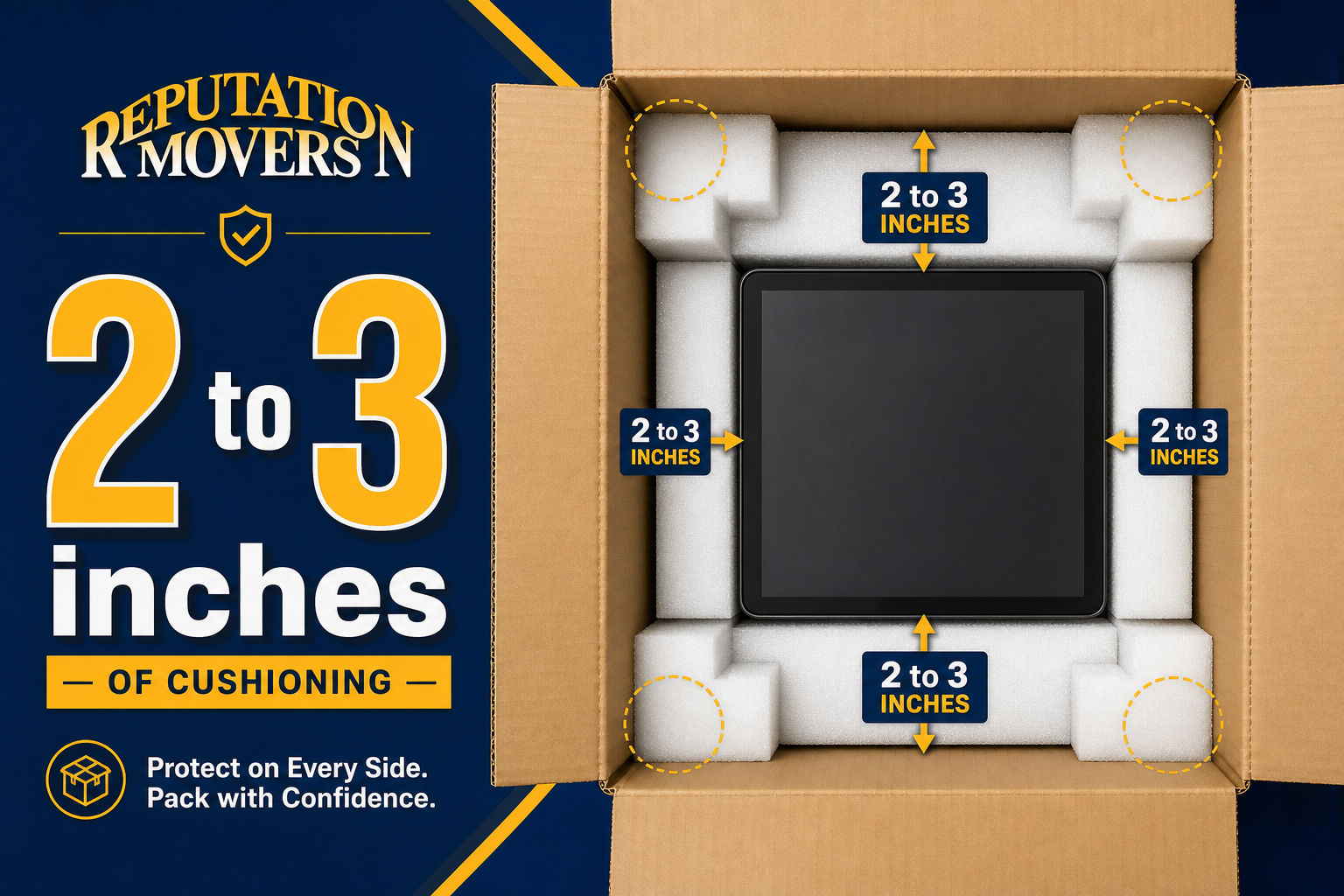
The box should be sturdy, double-walled, and only slightly larger than the tower. Line the bottom with cushioning, place the wrapped tower upright in the center, and fill all gaps so the computer cannot shift. Professional moving guidance often calls for 2 to 3 inches of padding around electronics inside the box.
Mark the box on multiple sides with clear handling instructions. Use wording such as “FRAGILE,” “COMPUTER TOWER,” “THIS SIDE UP,” and “DO NOT STACK.” The goal is to make the correct handling obvious from any angle during loading and unloading.
Protect Computer Monitors From Cracks, Pressure Marks, and Scratches
Monitors need a different packing strategy than towers. Flat-panel displays, large LCDs, and curved gaming monitors are vulnerable to cracked glass, pressure marks, scratched bezels, and flexing. The most important rule is to keep the screen protected from direct pressure and packed upright.
Start with the display surface. Place a clean microfiber cloth or soft fabric over the screen to prevent abrasions and catch dust. Then add a stiff piece of cardboard or thin foam cut to the size of the screen. This spreads pressure across a larger surface rather than letting one point press into the panel.
Some professional instructions suggest using two layers of barrier material and securing them lightly so they do not shift. Do not tape directly to the screen. The barrier should protect the display, not create new risks during removal.
Monitor corners and stands need separate attention
After the screen face is protected, wrap the whole monitor in several layers of anti-static bubble wrap. Corners need extra cushioning because they are vulnerable in a drop or hard bump. Dedicated corner protectors or folded extra bubble wrap can help reinforce those areas.
If possible, remove the stand or base. Wrap it separately so it cannot press against the screen inside the box. Screws, brackets, and mounting hardware should go into a small labeled bag that stays with the monitor or in a clearly marked tech accessories box.
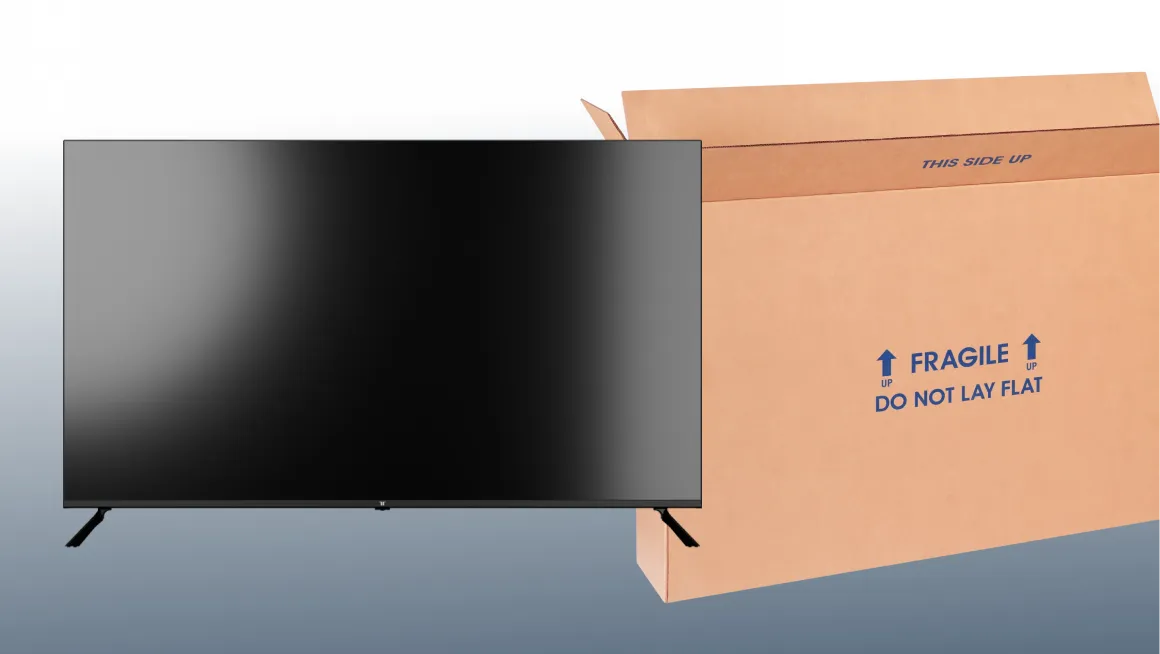
Use the original monitor box and foam inserts if they are available and in good condition. If not, choose a strong box with room for cushioning on all sides. Monitor packing guidance emphasizes that the display should be packed upright, never laid flat, because flat packing increases the risk of pressure damage.
Fill gaps around the wrapped monitor with foam, crumpled paper, or other cushioning so it cannot tilt inside the carton. Label the box “FRAGILE,” “MONITOR,” and “THIS SIDE UP.” Heavy boxes should not be stacked on top of monitor boxes in the truck or storage area.
Label Cables and Peripherals So Reassembly Is Fast and Accurate
Cable labeling is one of the simplest ways to reduce stress after a move. It is also one of the easiest steps to skip when packing feels rushed. A few minutes of labeling before disconnection can save a long search through identical black cords later.
The key is to disconnect one device at a time. Label both ends of each cable, then coil it loosely and group it with the correct device. For example, a monitor’s power cord, HDMI cable, DisplayPort cable, or USB-C cable should be bundled and labeled with that monitor.
For multi-device setups, use a system that is easy to follow. Matching colored stickers, painter’s tape, or pre-printed cable labels can mark both the port and the matching cable. This helps prevent mis-plugging and speeds up setup at the destination.
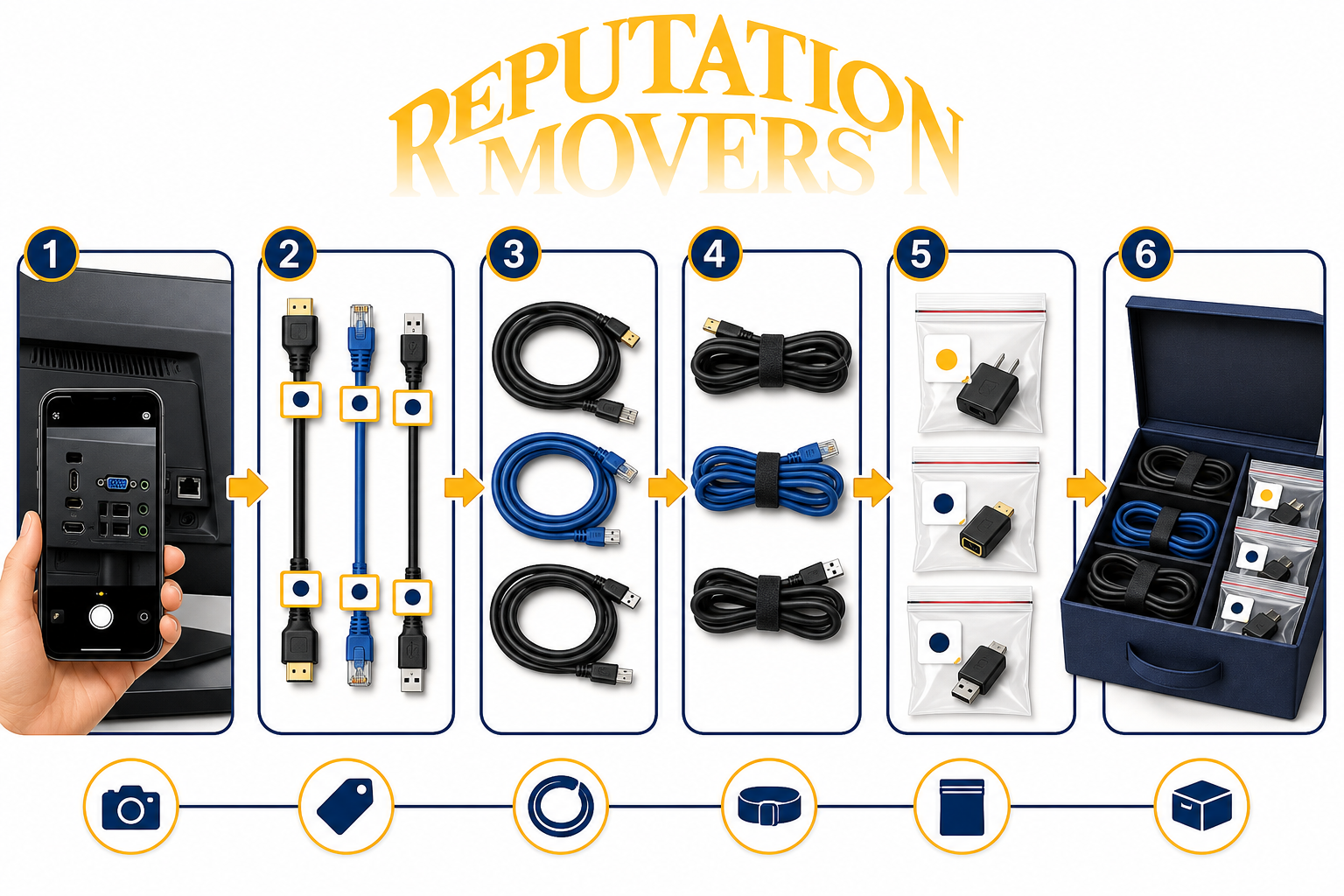
Before you begin pulling cords, decide how accessories will be grouped. Keeping related items together is more important than packing every cable in one big box. The more complex the setup, the more valuable the labeling system becomes. Use the following approach for desktops, monitors, and small peripherals:
Take clear photos of the back of each tower, monitor, docking station, router, and printer before unplugging cables.
Label both ends of every cable with matching tags, colors, or written labels.
Coil cables loosely instead of bending or kinking them.
Secure each cable bundle with Velcro ties or similar ties.
Group cables by device, such as “PC-01 cables,” “Monitor left,” or “Printer cables.”
Place small dongles, adapters, wireless receivers, screws, and brackets in labeled zip-top bags.
Pack accessories in a dedicated “Tech Accessories” box with a contents label on the outside.
For an office move, add user names, workstation numbers, or room names to the labels. Monitors can also be labeled by position, such as left, center, right, or portrait. This helps recreate the original workstation layout quickly.
Pack External Drives, Routers, Printers, and Accessories With Device-Specific Care
Computers are usually the focus, but related equipment needs protection too. External hard drives, routers, modems, switches, printers, scanners, keyboards, mice, speakers, webcams, and docking stations all have different vulnerabilities. Treating them as a single loose accessory pile increases the chance of damage or loss.
External drives deserve special attention because they may hold backups or important files. After verifying backups and safely ejecting the drive, place it in an anti-static bag or anti-static bubble wrap. Add outer cushioning with foam, packing paper, or a small sturdy carton.
Mechanical external drives need extra cushioning. Pack them in small boxes lined with padding on each side, and separate multiple drives so they cannot bump into each other. Mark the box “FRAGILE” and “DRIVES.” If practical, important drives should travel in a personal vehicle or secure area instead of under heavy cargo.
Network gear and printers should be prepared before wrapping
Routers, modems, and switches should be disconnected, labeled, and packed with their related cables. Remove antennas when possible and place them in labeled bags. Wrap devices with anti-static bubble wrap, but avoid compressing vents or bending casings.
For printers and multifunction devices, follow the available printer instructions for locking print heads or carriages when possible. Moving guidance typically calls for removing ink cartridges or toner, sealing them separately in plastic bags, and keeping printers upright. The device should be wrapped in a soft layer and bubble wrap, then boxed with cushioning on all sides.
Small peripherals need organization more than heavy padding. Wrap fragile items such as speakers or docking stations, and group accessories by device or workstation. Keyboards and mice can be packed with related equipment, while small receivers, USB dongles, adapters, and screws should go into labeled bags.
Control Static, Temperature, and Moisture Risks During the Move
Electronics can be damaged by risks that are not visible at first glance. Static electricity, temperature swings, and moisture can all create problems before or after moving day. A safe packing plan accounts for these conditions as well as impact protection.
Static electricity is a particular concern when handling internal components. Avoid working on carpet when packing PCs or exposed hardware, since carpet can generate static. Pack on hard surfaces when possible, and touch a grounded metal object before handling components if anti-static tools are not available.
Graphics cards, RAM, bare hard drives, and similar parts should be handled by their edges and placed into anti-static bags promptly. Use anti-static bubble wrap for electronics rather than materials that may generate static. Avoid placing wool blankets or static-prone fabrics directly against exposed components.
Temperature and moisture require planning, especially for long moves or storage. Computers and monitors should be kept away from extreme heat or cold when possible. Electronics are often best loaded last and unloaded first to reduce time in non-climate-controlled conditions.
When devices move from a cold or hot environment into a new indoor space, let them sit unplugged for several hours before powering them on. Guidance on electronics moves recommends letting devices sit unplugged in their new environment so internal temperatures can equalize and condensation can evaporate.
Use Clear Box Labels and Placement Instructions to Reduce Transit Risk
Good packing can still fail if a box is handled like ordinary household goods. External labels tell everyone how the box should be treated. Put labels on multiple sides so they remain visible during loading, stacking, and unloading.
Labels should include both contents and handling instructions. “Desktop tower” is helpful, but “FRAGILE,” “THIS SIDE UP,” and “DO NOT STACK” give clearer direction. For offices, include workstation names, room names, or department labels so boxes can be placed correctly at the destination.
Electronics boxes should not be stacked under heavy furniture, books, or dense cartons. When possible, they should ride in secure, low-vibration areas and remain upright. At the destination, room labels or a simple floor plan can help movers place each computer, monitor, and accessory box exactly where it belongs.
Before moving day, make a final check. This is where careful planning turns into a smoother unpacking process. The best checklist is short enough to use while packing but specific enough to catch common mistakes. Review each computer setup against these steps:
Backups are complete and verified before shutdown.
Computers are shut down through the operating system.
Discs, USB drives, dongles, and accessories are removed from ports and drives.
Photos show the back of each tower, monitor, docking station, router, and printer.
Cables are labeled, coiled, and grouped by device.
Desktop towers are wrapped in soft material and anti-static cushioning.
Monitors have a soft screen layer, rigid screen barrier, corner protection, and upright boxing.
External drives and internal components are protected with anti-static bags or anti-static wrap.
Printer ink or toner is removed and sealed separately when applicable.
Boxes are labeled with contents, room destination, “FRAGILE,” “THIS SIDE UP,” and “DO NOT STACK.”
For high-value computers, specialized gaming systems, or long-distance moves, consider double-boxing. Some PC packing guidance recommends double-boxing the PC with cushioning between an inner and outer box for better drop protection. This adds bulk, but it can reduce risk when equipment will be handled multiple times.
Plan Your Computer Packing Around Setup at the New Location
The safest computer move does not end when the box is sealed. It ends when the equipment is unpacked, placed in the right room, and reconnected without searching for missing parts. Packing with setup in mind helps make that possible.
Keep related items together. A monitor’s stand, screws, power cord, and specialty display cable should be easy to find when the monitor is unpacked. A tower’s power cord, keyboard, mouse, and display cables should be grouped in a way that makes sense to the person reconnecting them.
For households, that may mean one clearly labeled box for each desk or family member. For a business, it may mean a workstation-by-workstation system with inventory notes. Either way, the goal is to avoid a pile of unlabeled accessories that turns setup into a guessing game.
If your move includes desktop computers, monitors, home office equipment, or business workstations, Reputation Movers can help with packing, moving, storage, and setup-related moving services designed around careful handling. To get help planning your move, Get a Quote or call (703) 660-6683.





















.webp)

.webp)
.webp)
.webp)

.webp)
.webp)










.webp)

.webp)


.png)